Create and schedule social posts with less repeat work.
Turn your photos, videos, and ideas into posts for your business. Save instructions for your captions and visuals, reuse them across posts, and choose when each post should run.
Use your own content, add AI when it helps, and choose what publishes automatically.

Featured Posts
Recent Posts
See SocialSync in action
SocialSync Demo -- Automate Your Social Media Posting
Less setup for your next post
SocialSync is for businesses that want to keep posting without starting from a blank page every time. Save your accounts, content, and instructions together, then reuse them as you plan the next post.
- Connect Facebook Pages, Instagram, X, TikTok, and YouTube. Choose the supported destinations for each post.
- Use your own captions and media, or ask AI to help create them.
- Keep each brand or client organized in a separate profile.
- Schedule a post, review its result, and adjust the instructions for next time.
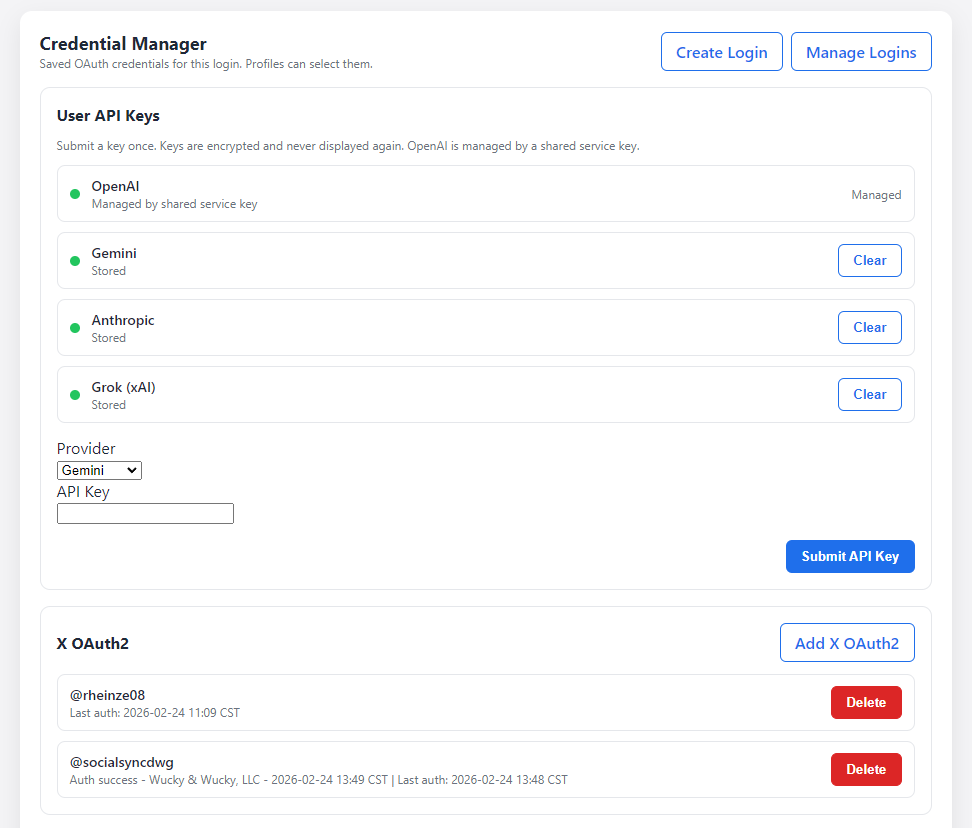
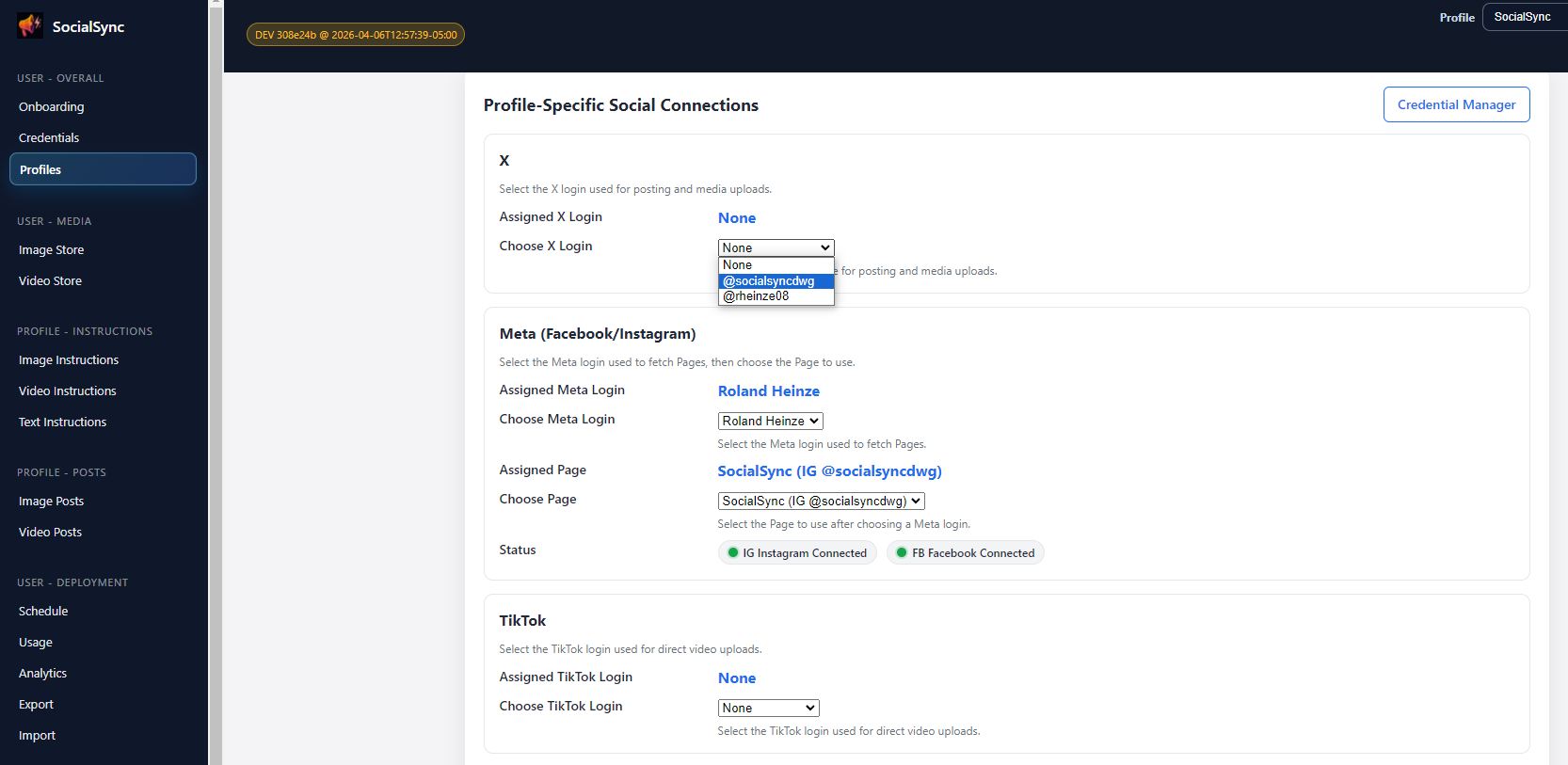
Connect your social accounts
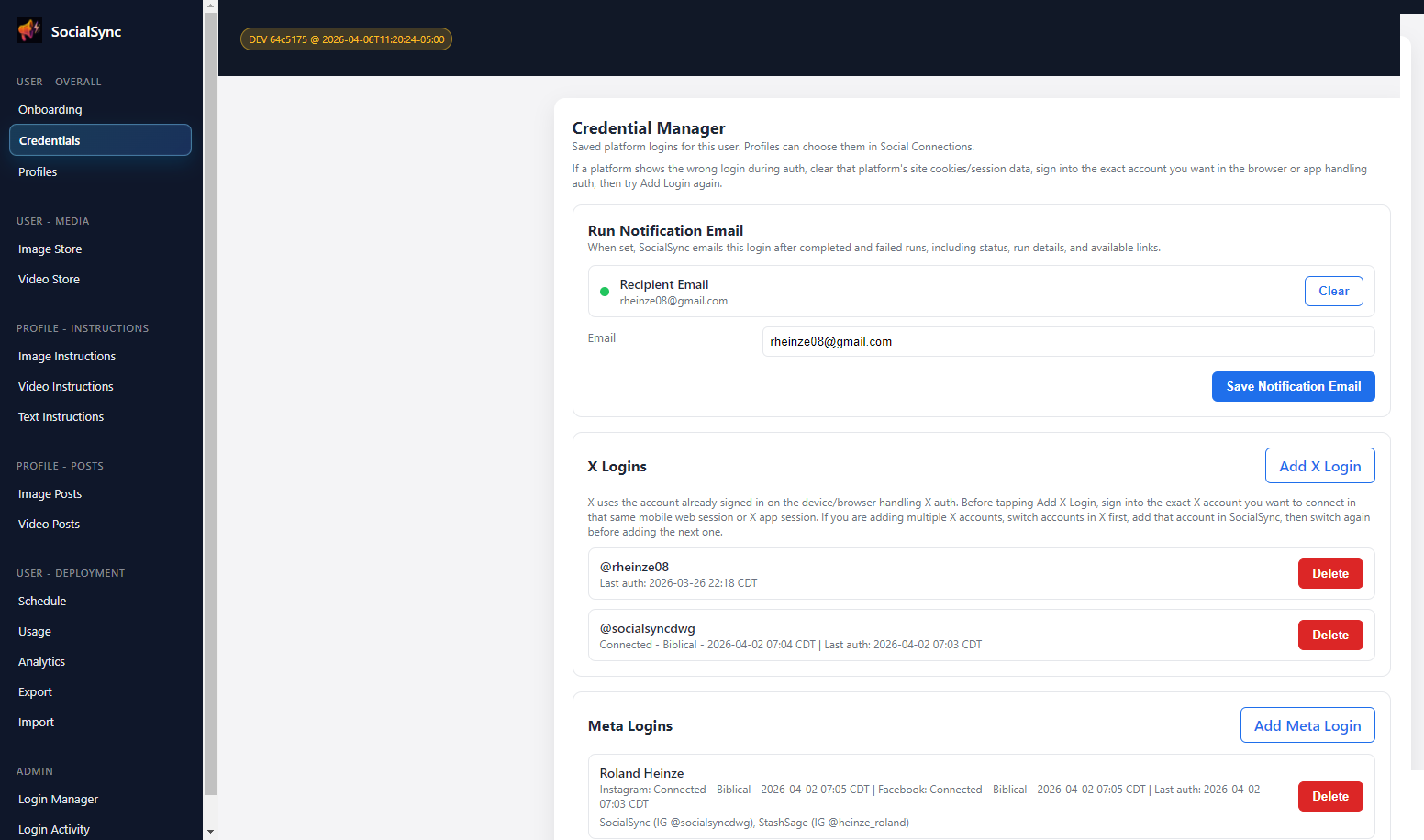
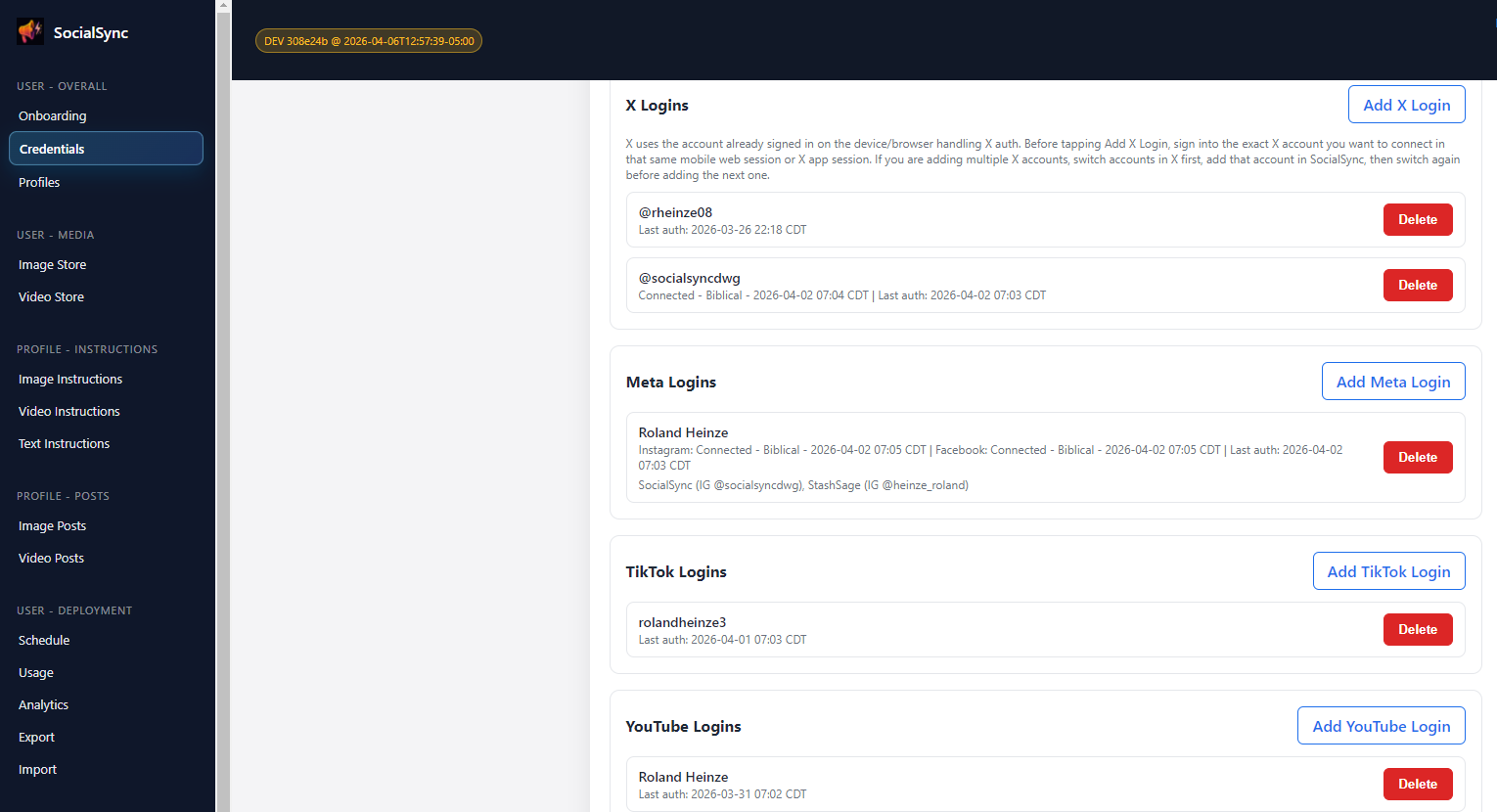
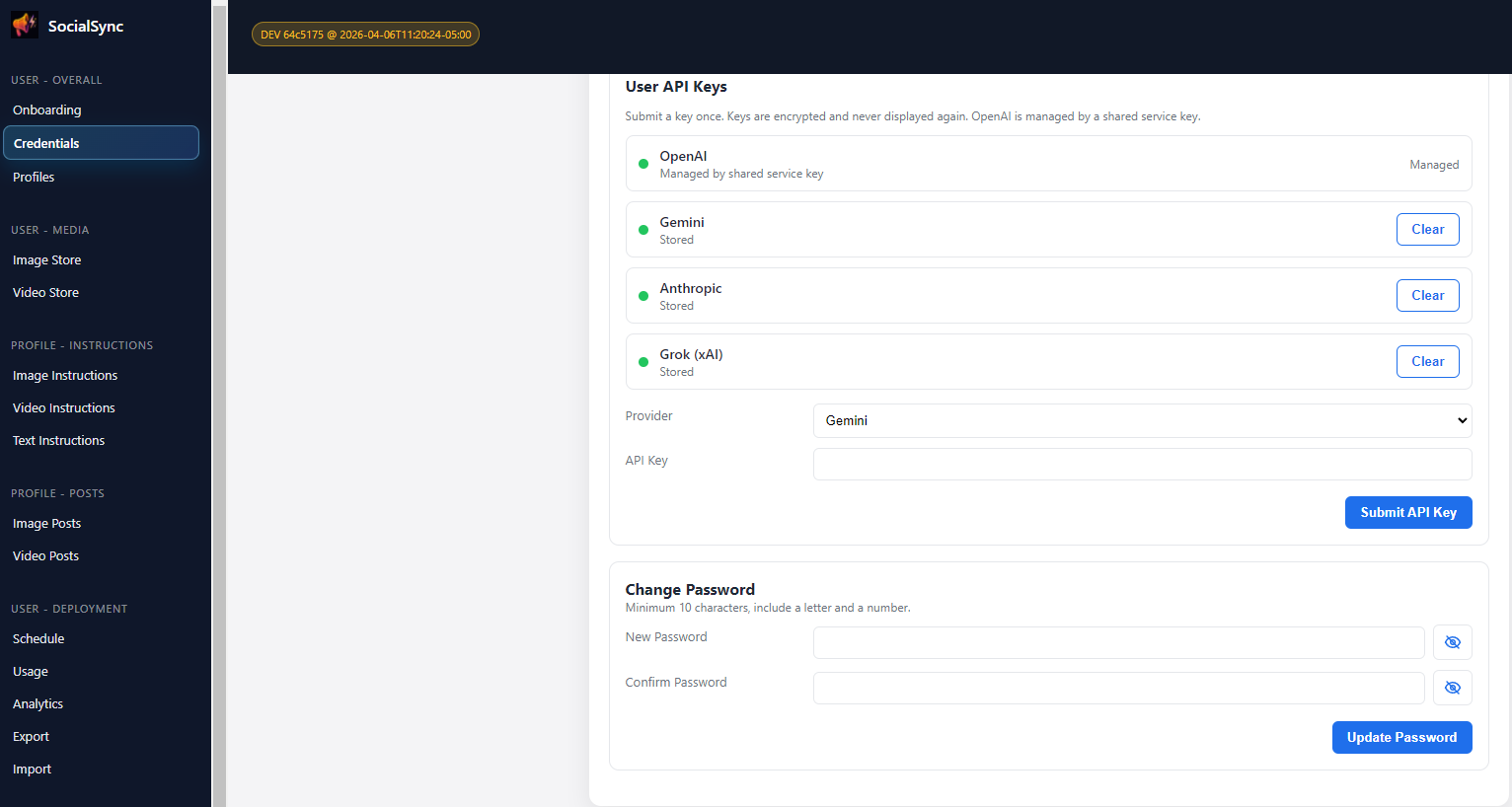
Open Credentials to authorize the social accounts you want to use. These saved connections belong to your SocialSync login and can be assigned to your profiles.
- Use the connection buttons to sign in and authorize access with each platform.
- Choose a notification email for run results and draft links.
- If a connection stops working, return to Credentials to reconnect it.
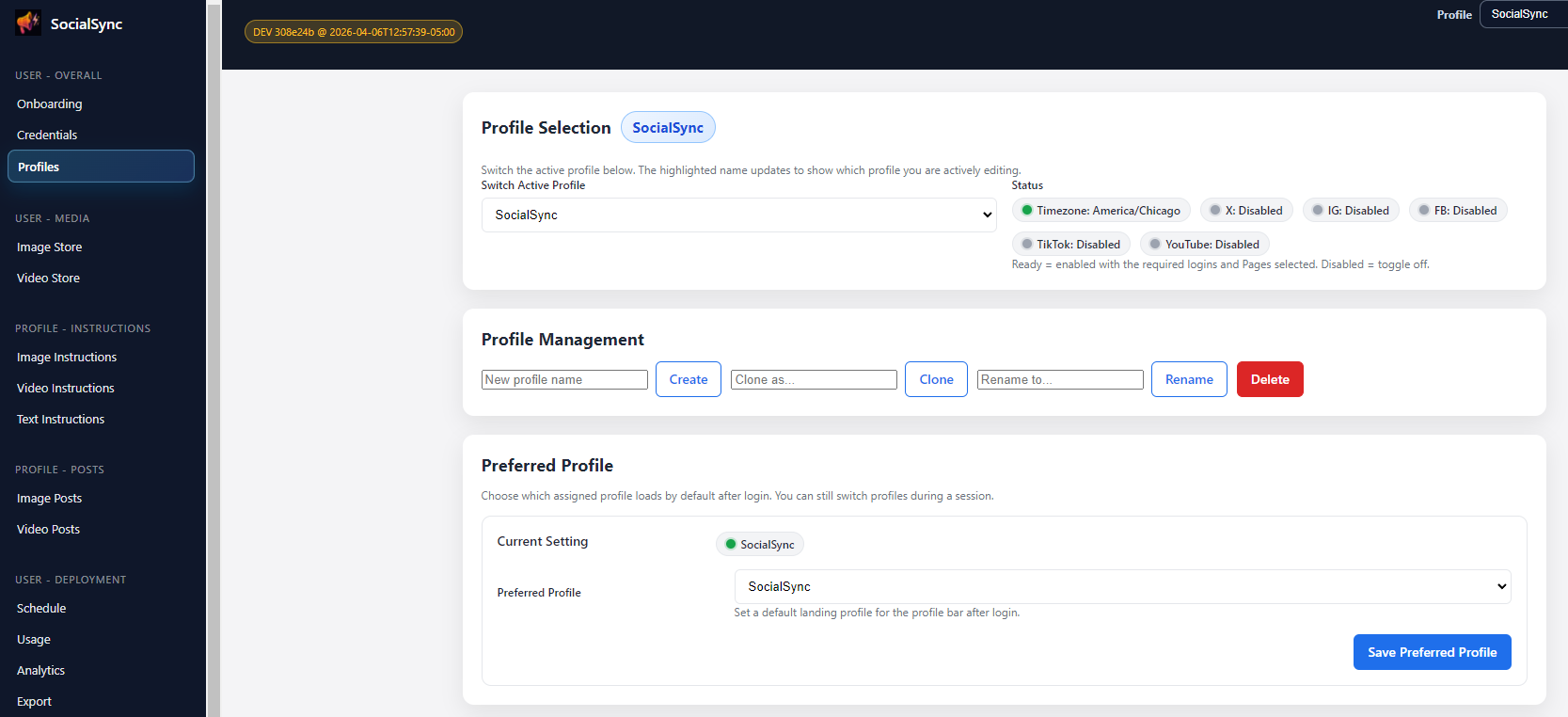
Give each brand its own profile
A profile keeps one brand or campaign's instructions, posts, connections, and schedule together. Select the profile before you make changes.
- Create a profile with a name you will recognize, such as your business or client name.
- Under Connections, assign saved logins and select the Page or account that should receive posts.
- Check the publishing targets and approval settings before the first run.

Keep your photos and videos ready to reuse
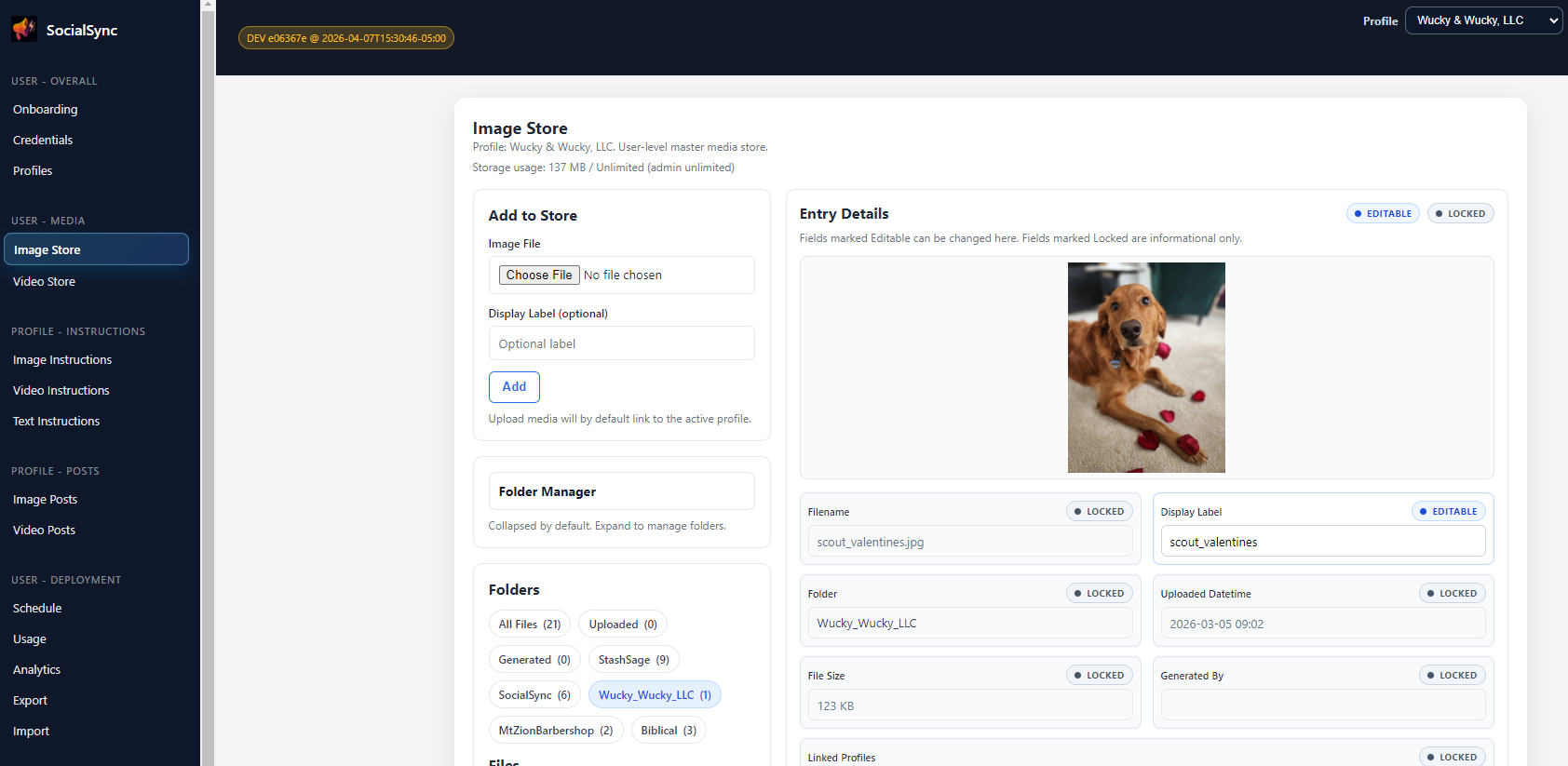
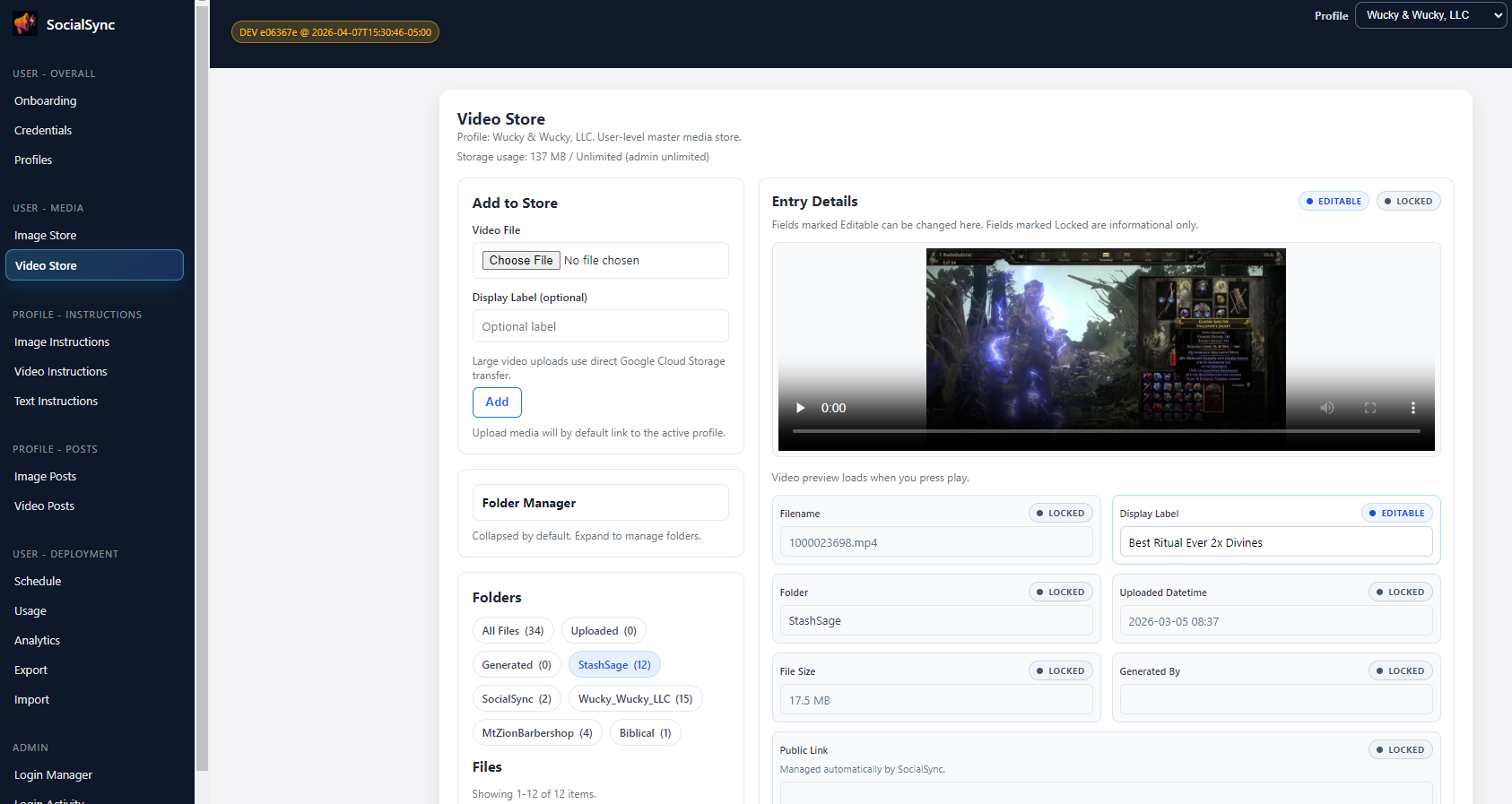
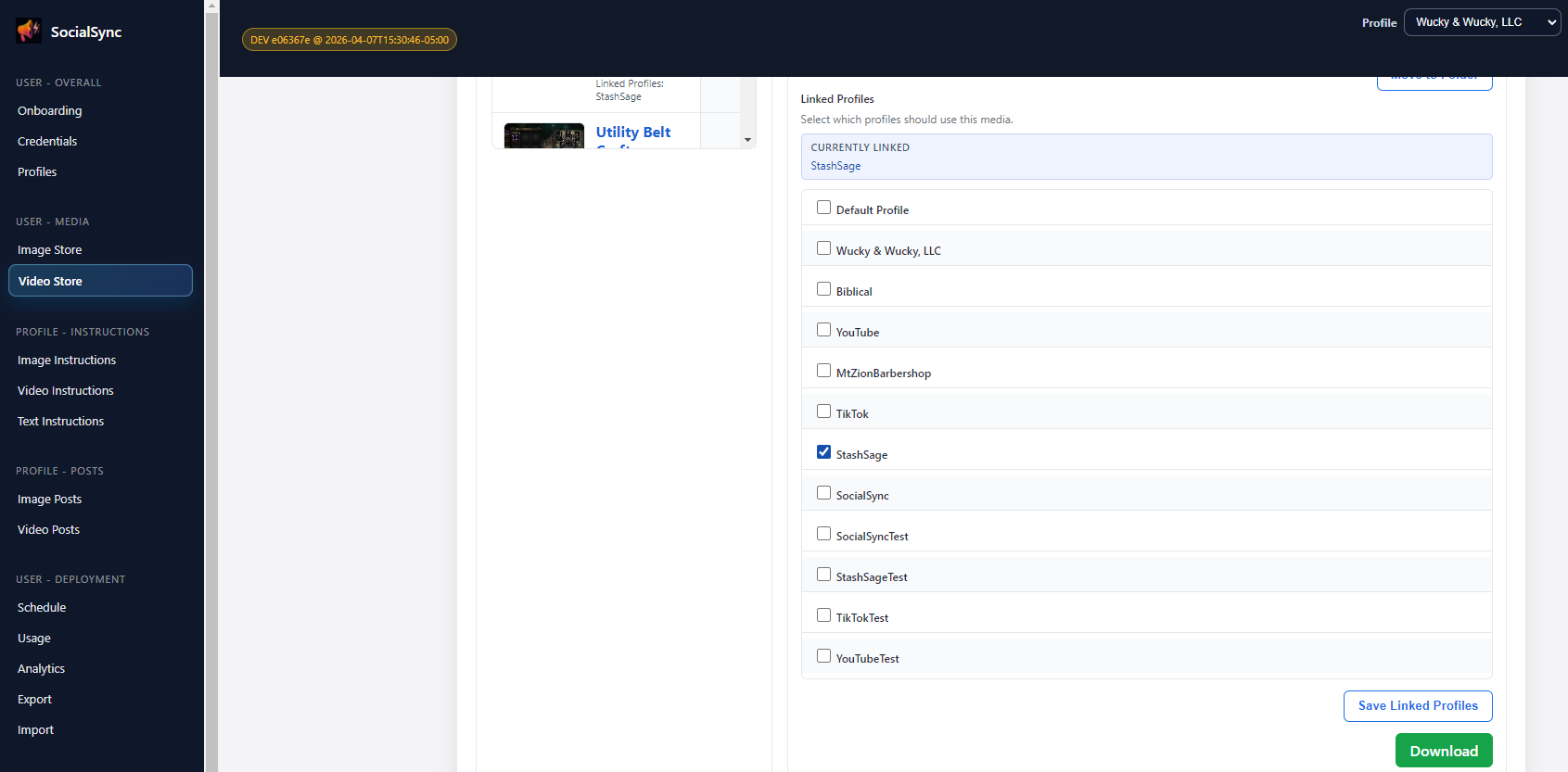
Image Store and Video Store are libraries for your SocialSync login. Upload files once, organize them into folders, and link them to the profiles that will use them.
- Choose existing photos or videos when you want to publish content you already have.
- Link media to a profile to make it available to that profile's posts.
- Use a stored image as a reference when you want AI to follow a particular look.
Tell SocialSync what each post should contain
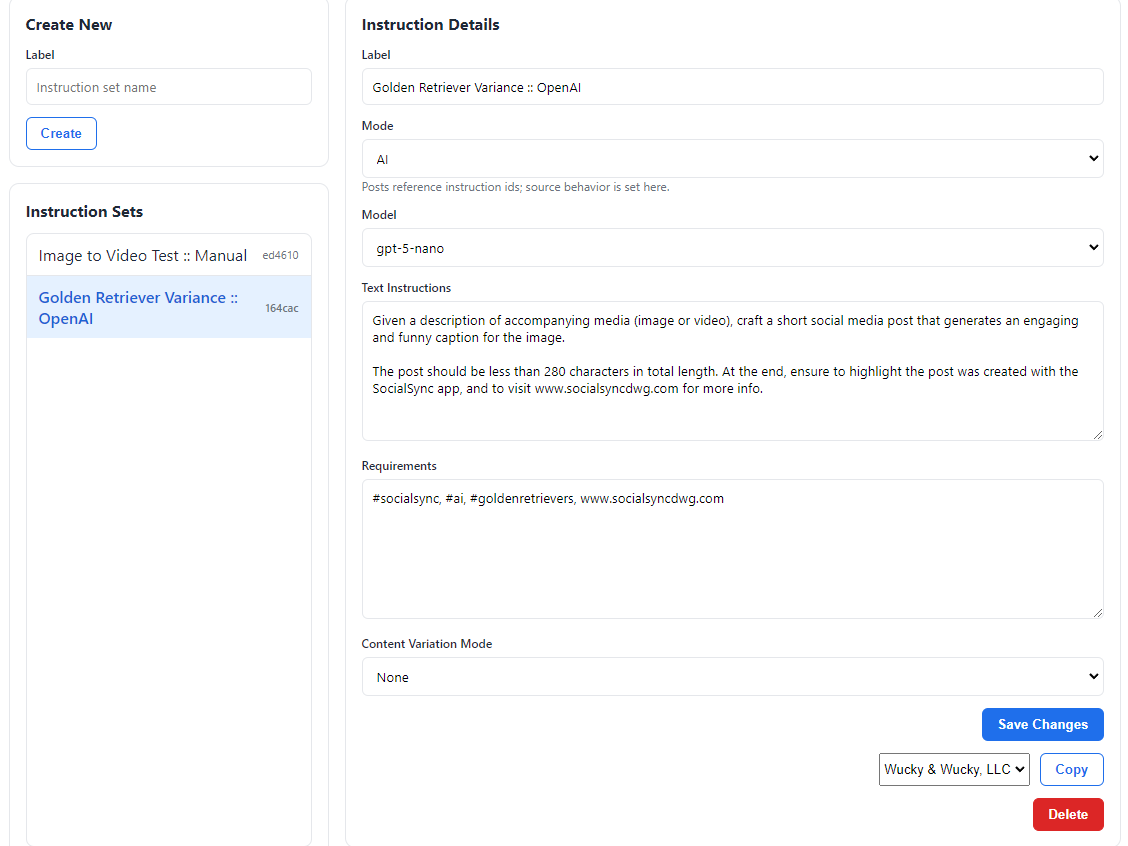
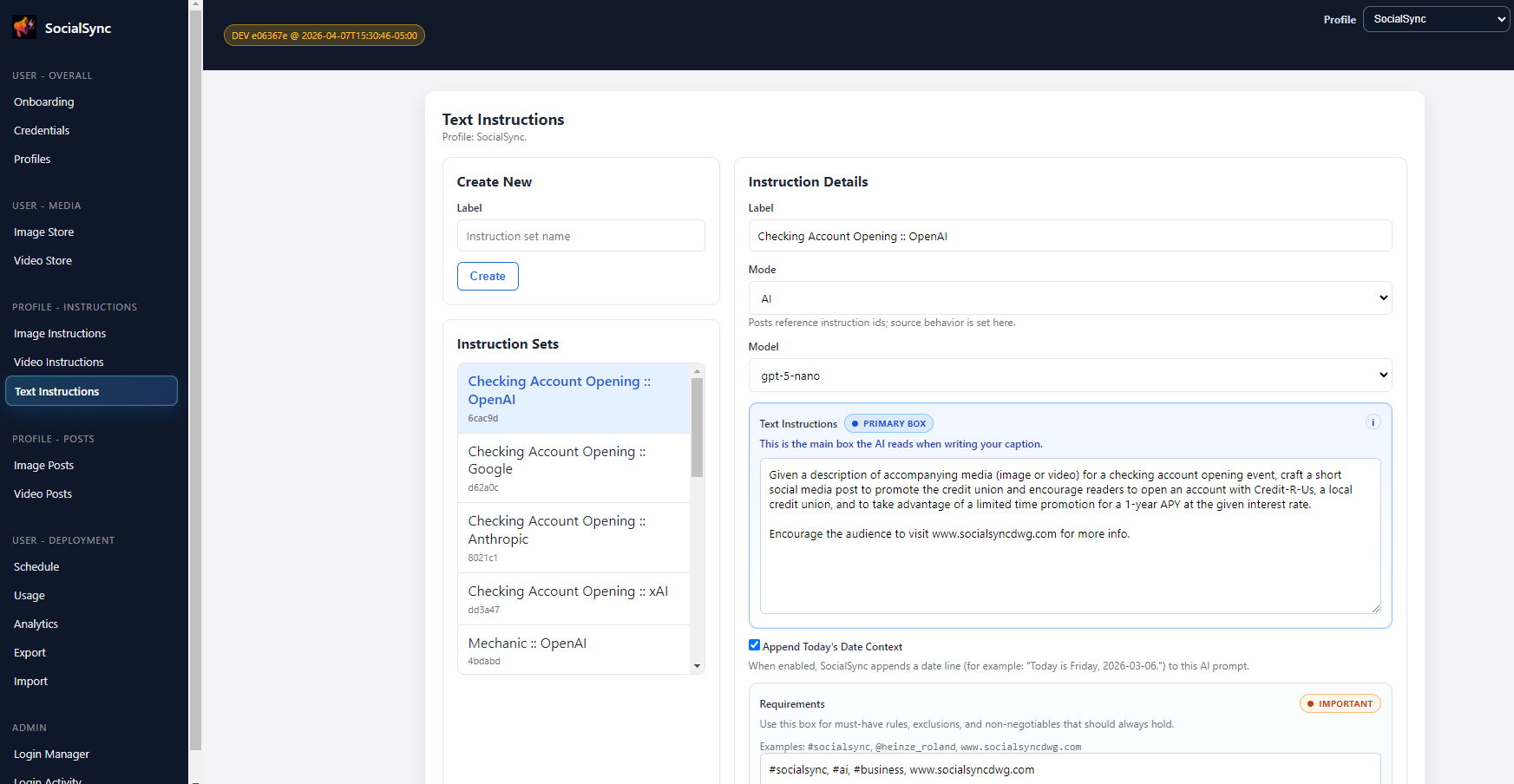
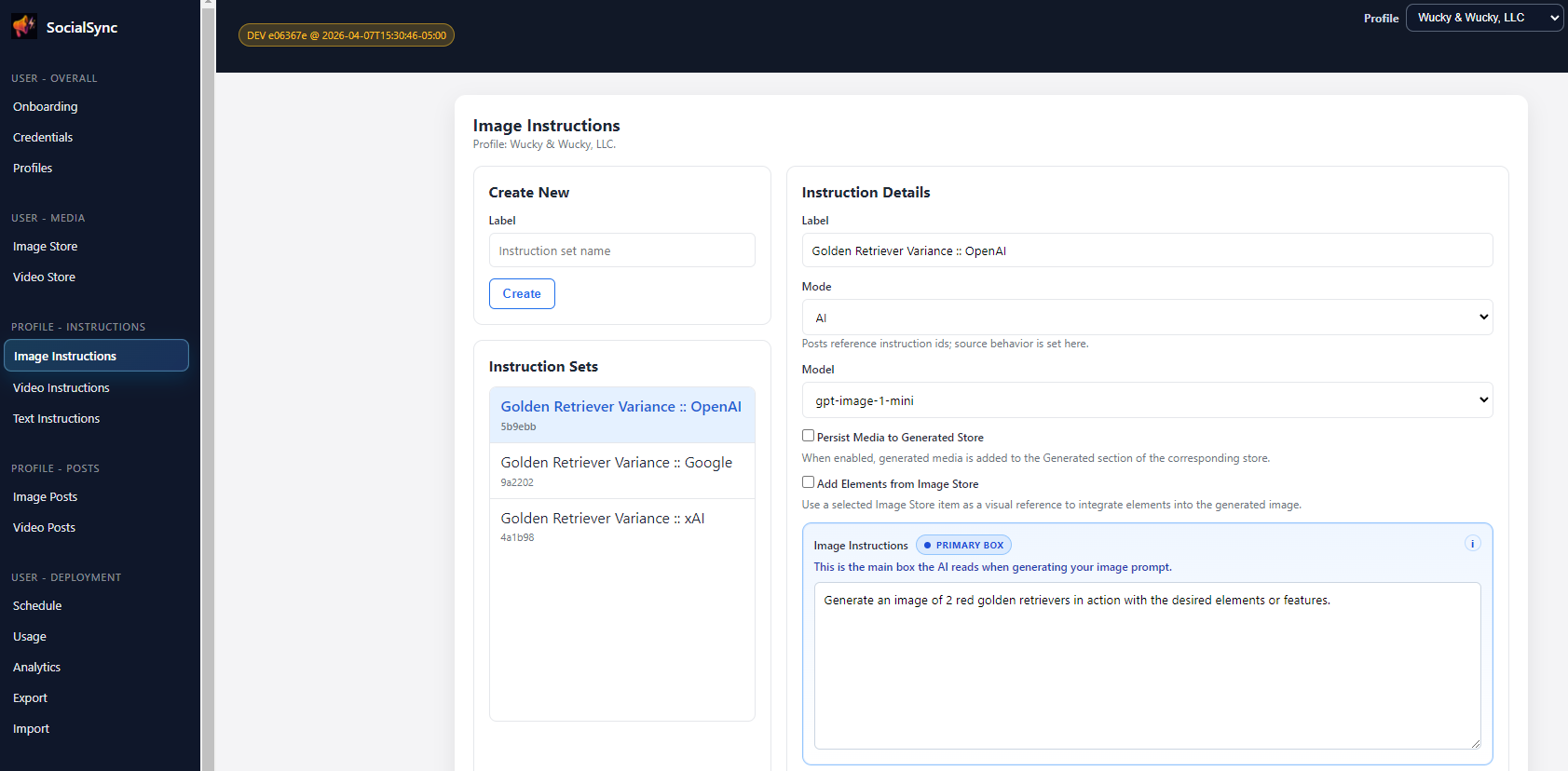
Instructions are saved directions for your captions and visuals. Start with one clear set, then reuse it in your posts.
- Text Instructions hold your caption or describe the wording, tone, links, and hashtags you want AI to write.
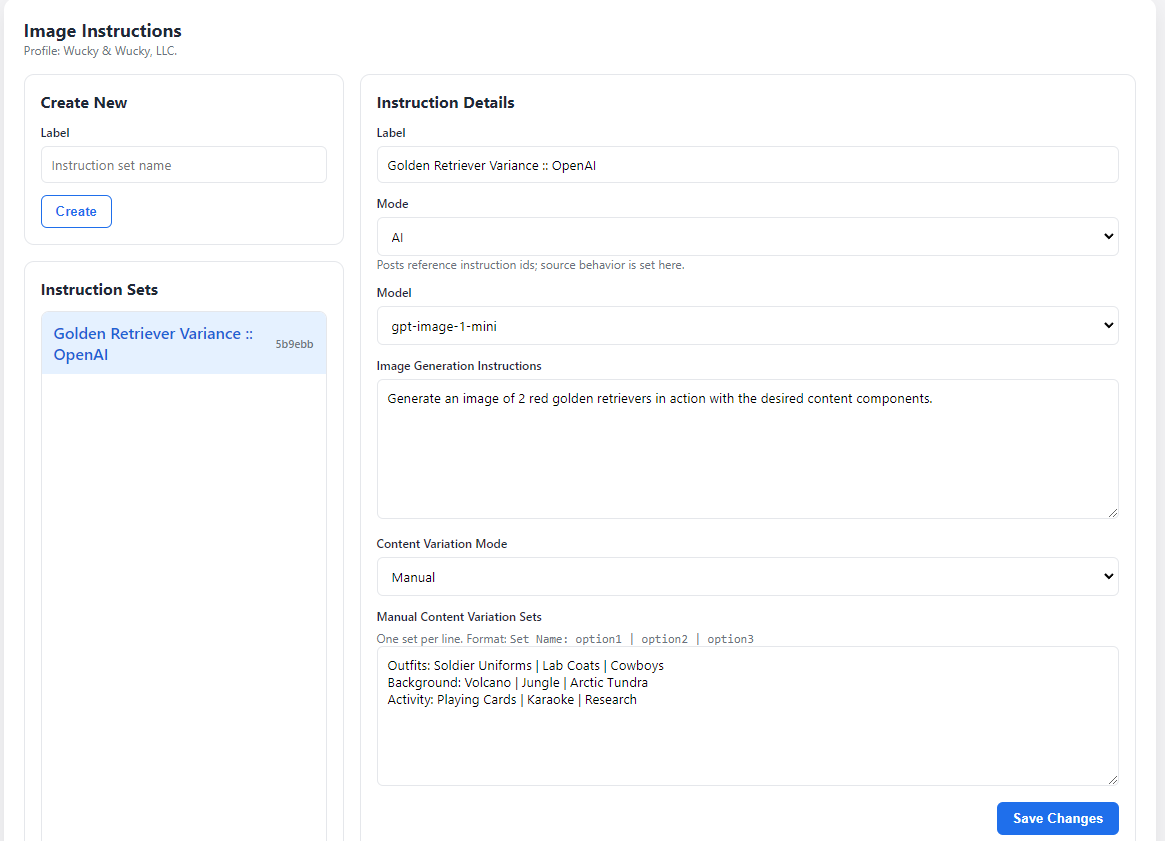
- Image Instructions and Video Instructions choose an existing file, pick from selected files at random, or describe media for AI to create.
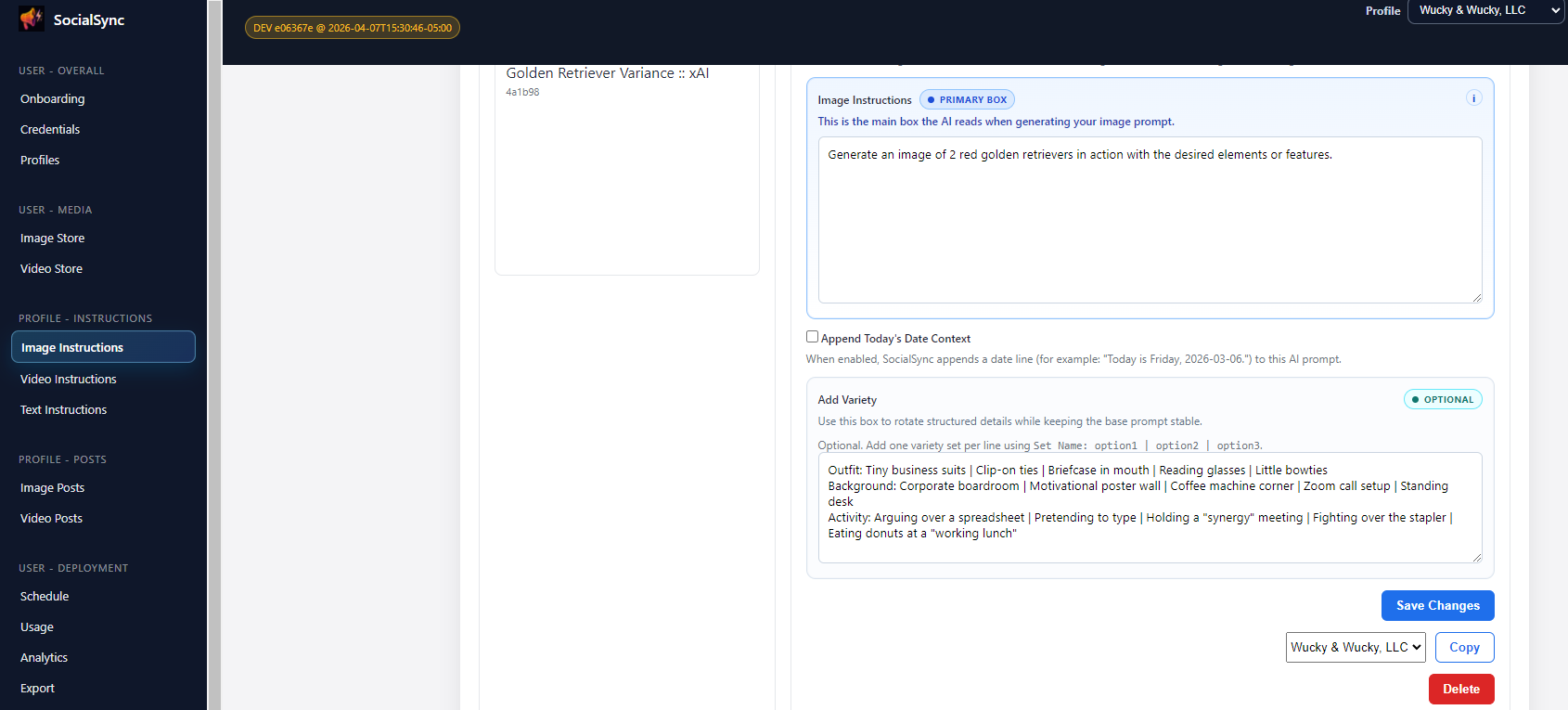
- Use Add Variety for options such as themes or backgrounds once your basic instructions work.
Combine your caption and media instructions
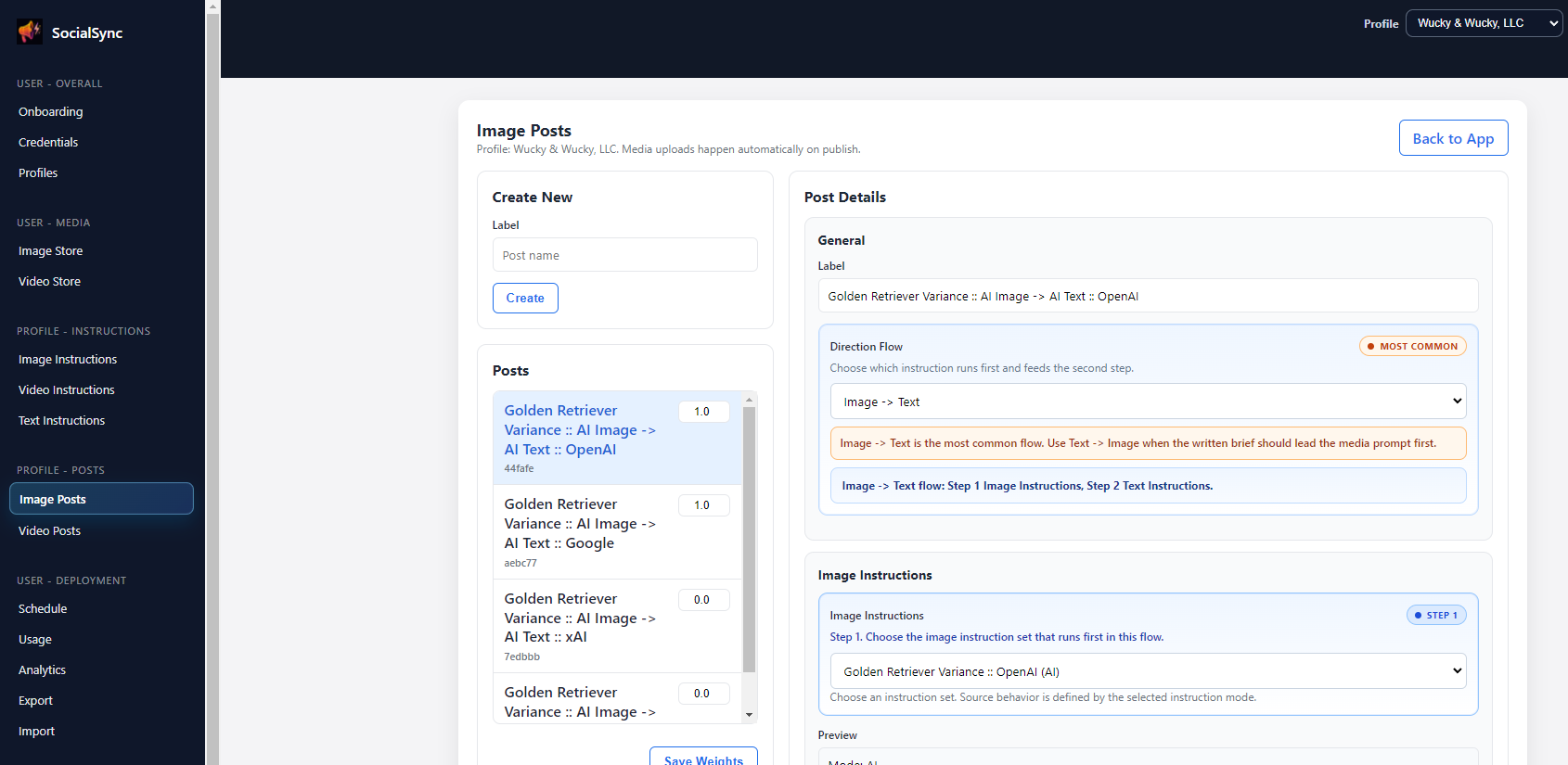
A post template is a saved recipe: it pairs text instructions with image or video instructions. Creating a template does not publish it.
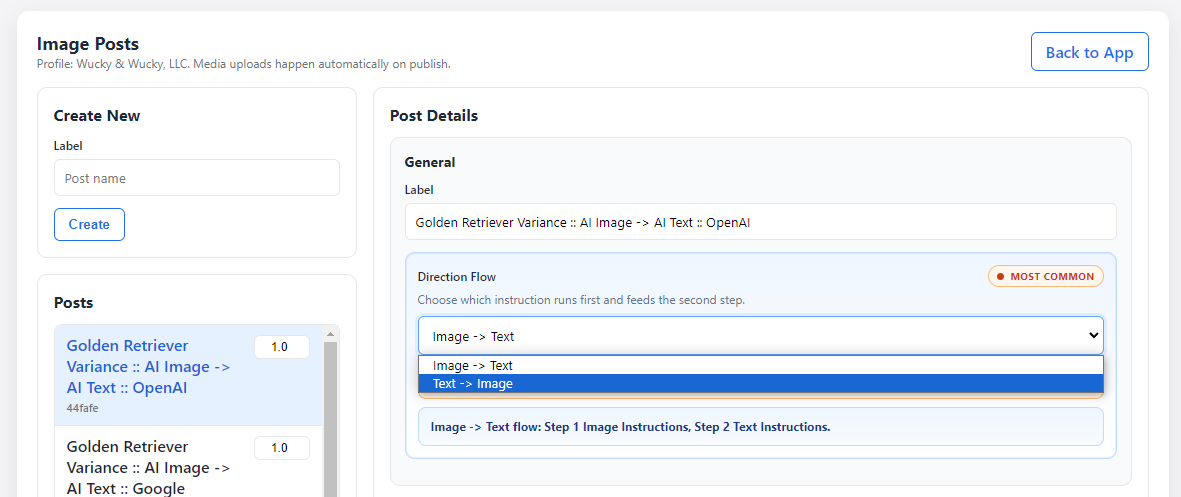
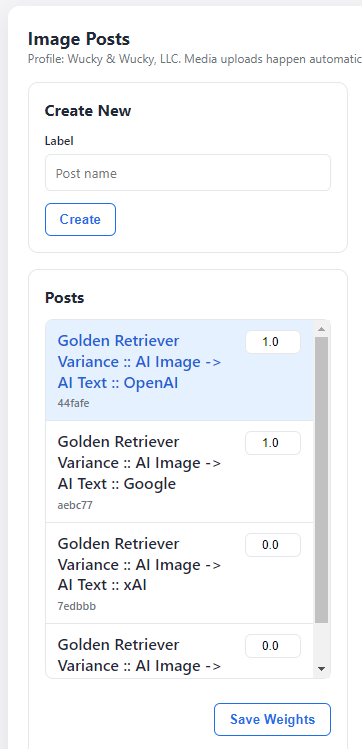
- Choose Image Posts or Video Posts and select the instructions the template should use.
- Choose whether the caption guides the visual or the visual guides the caption.
- For random schedules, a higher weight makes a template more likely to be selected. Start with one fixed template for an easier first run.
Choose when to post and when to review
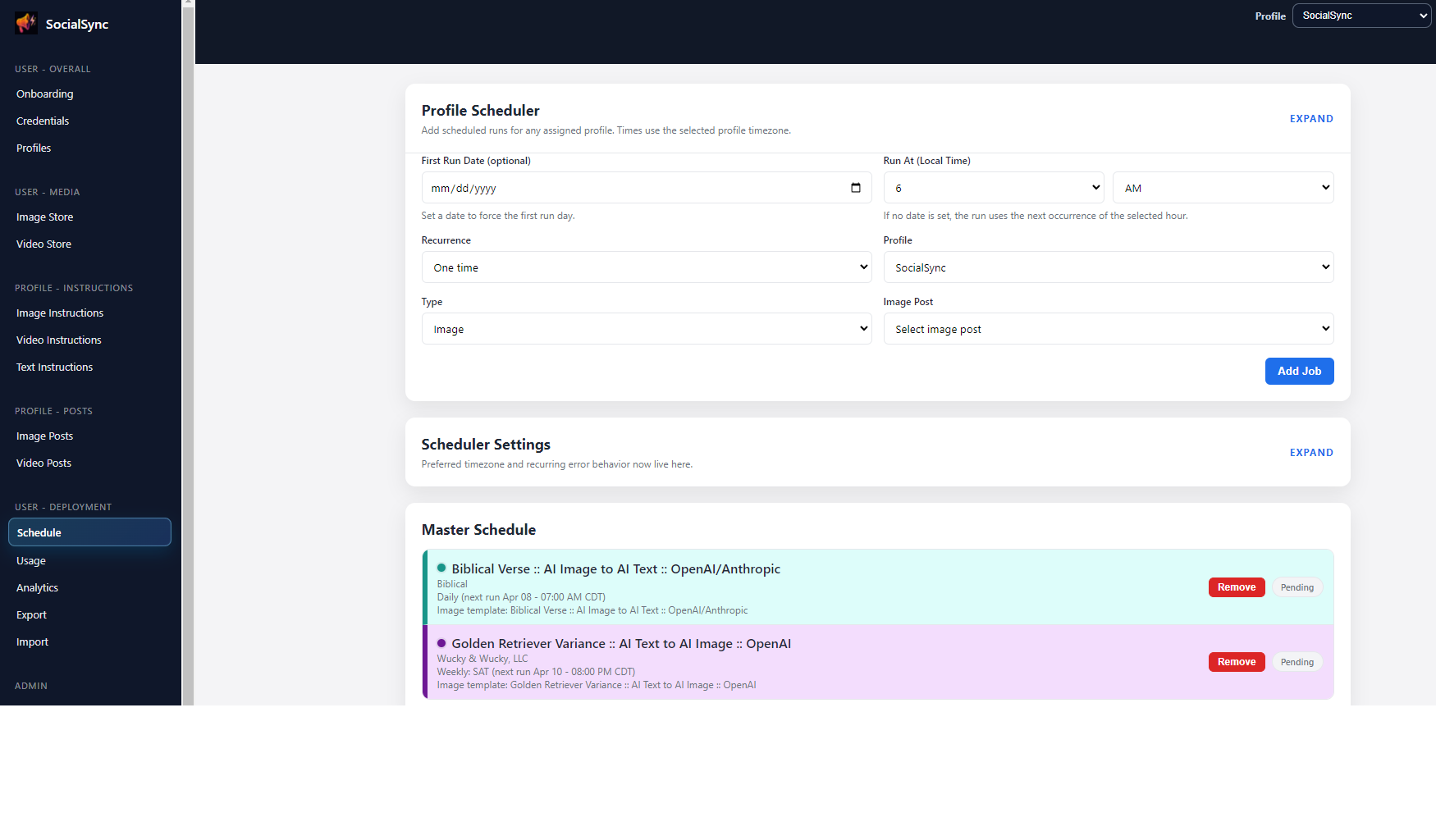
Set a time for one post or create a recurring schedule. Check the profile, destinations, timezone, and approval settings before saving.
- Turn off Auto-post under Approval Flow in profile Connections when you want to review X, Instagram, Facebook, or YouTube drafts first.
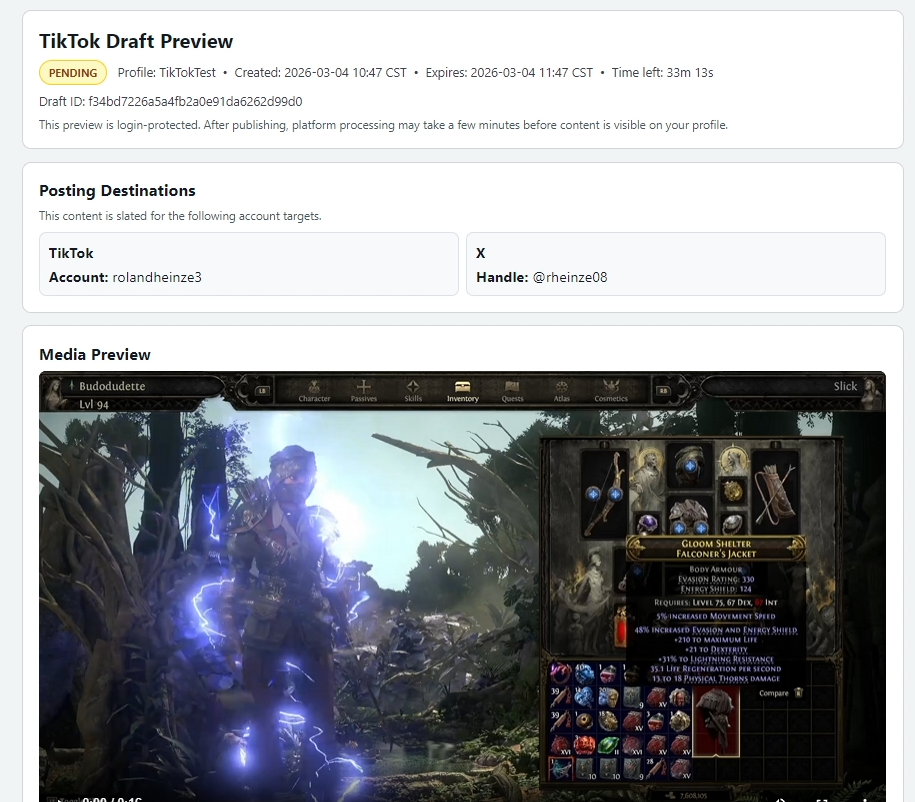
- TikTok posts always need your approval in Drafts.
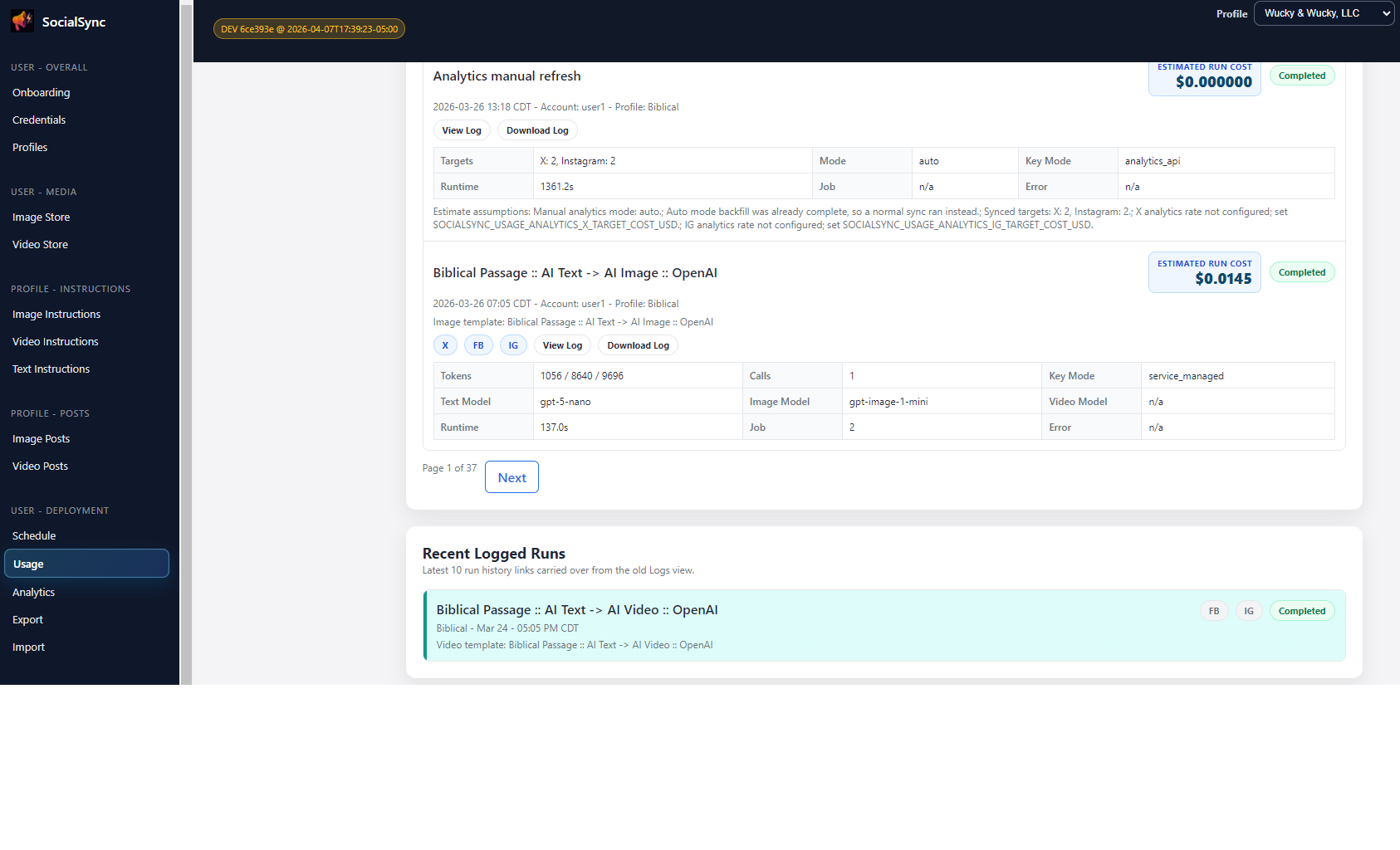
- After a run, open Drafts to review posts waiting for approval. Check Usage for results, errors, and available links.
- Once the first post works as expected, reuse its template in a recurring schedule.
Check the result before changing the plan
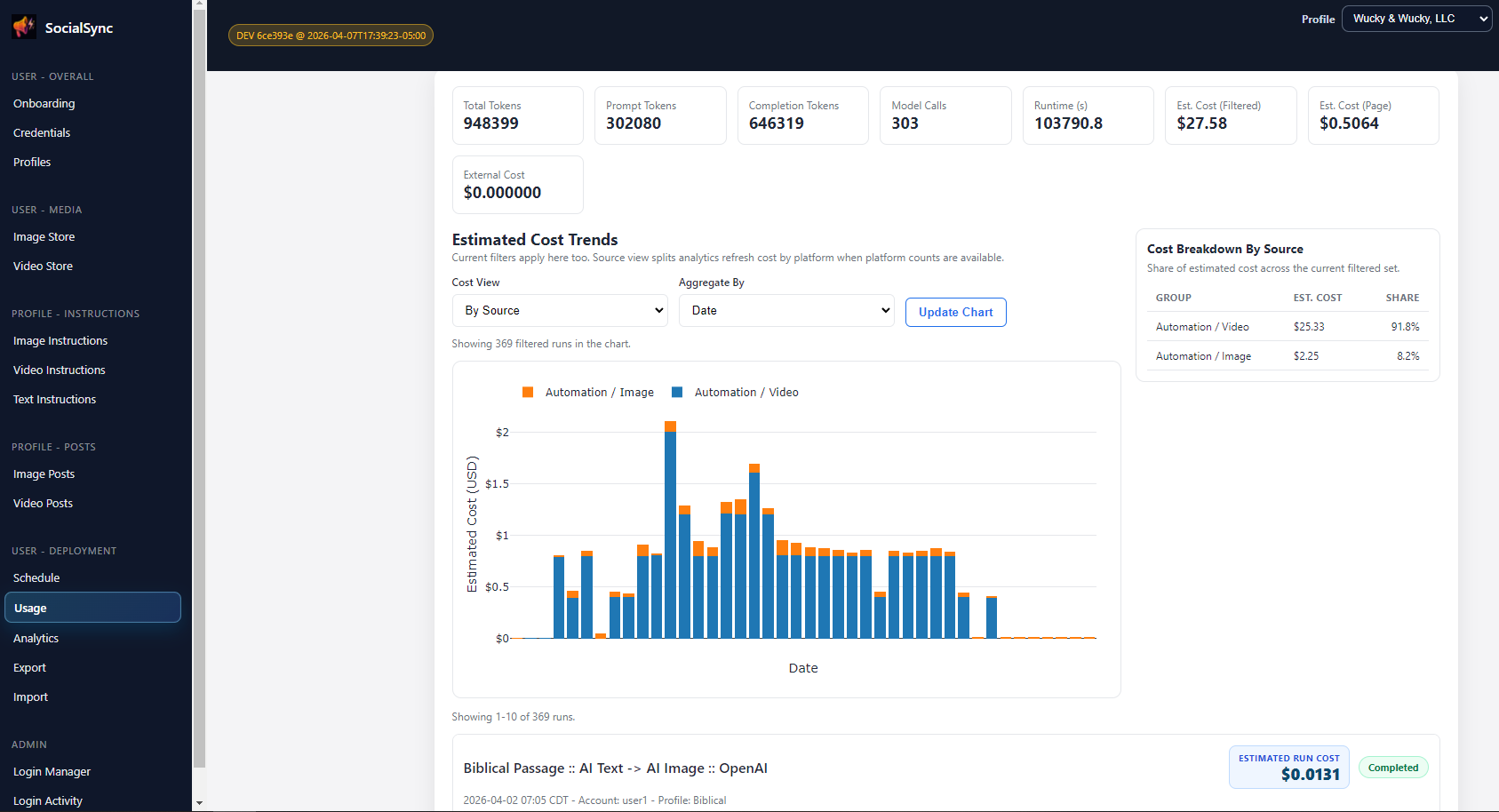
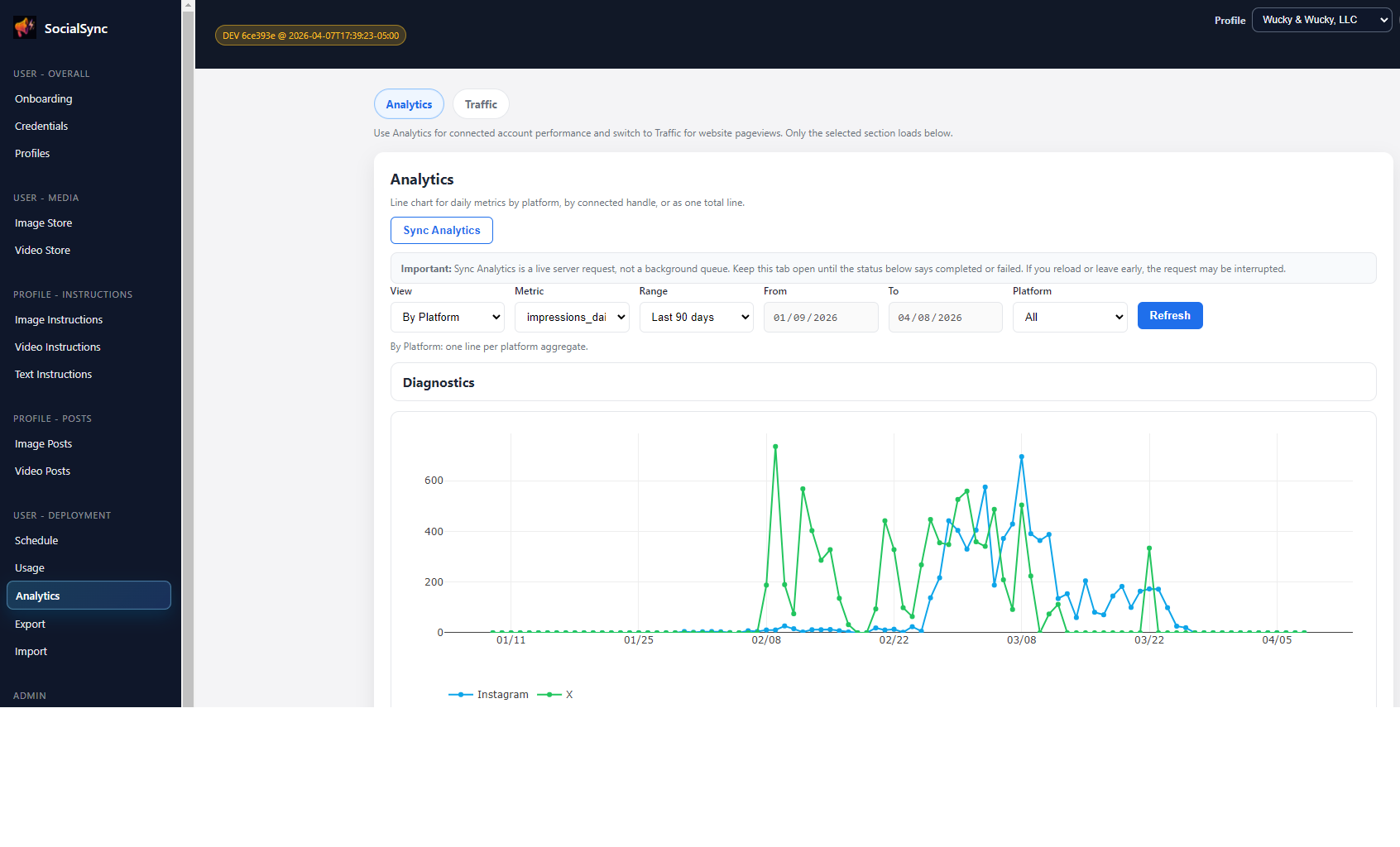
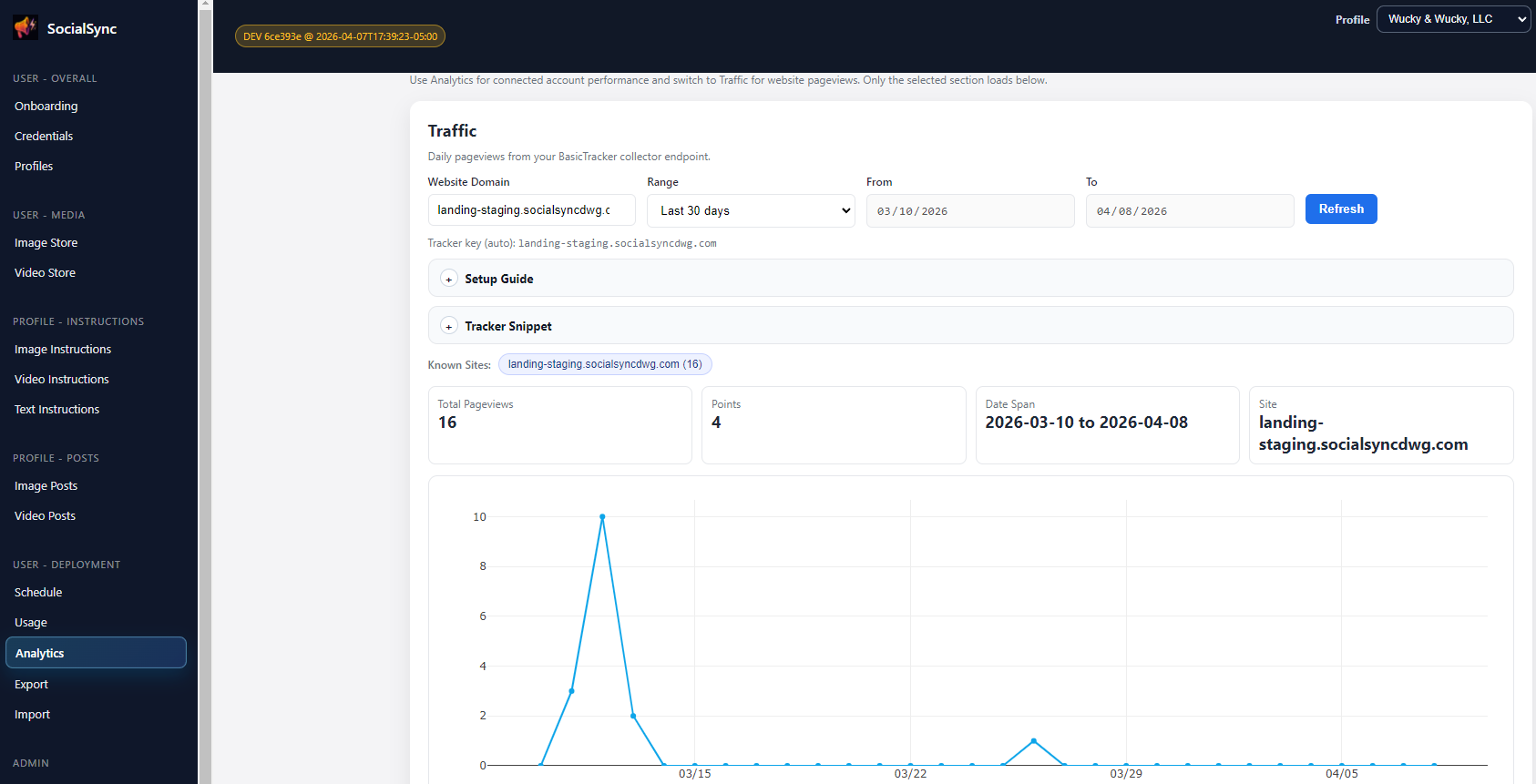
Usage tells you whether a run worked. Analytics helps you understand how published content performed.
- Usage shows run results, errors, costs, and available post or draft links.
- Analytics shows available performance data for X and Instagram.
- Traffic shows visits to a website where tracking is enabled.
- Use those results to adjust your captions, visuals, and posting schedule.
Save the right backup for what you need
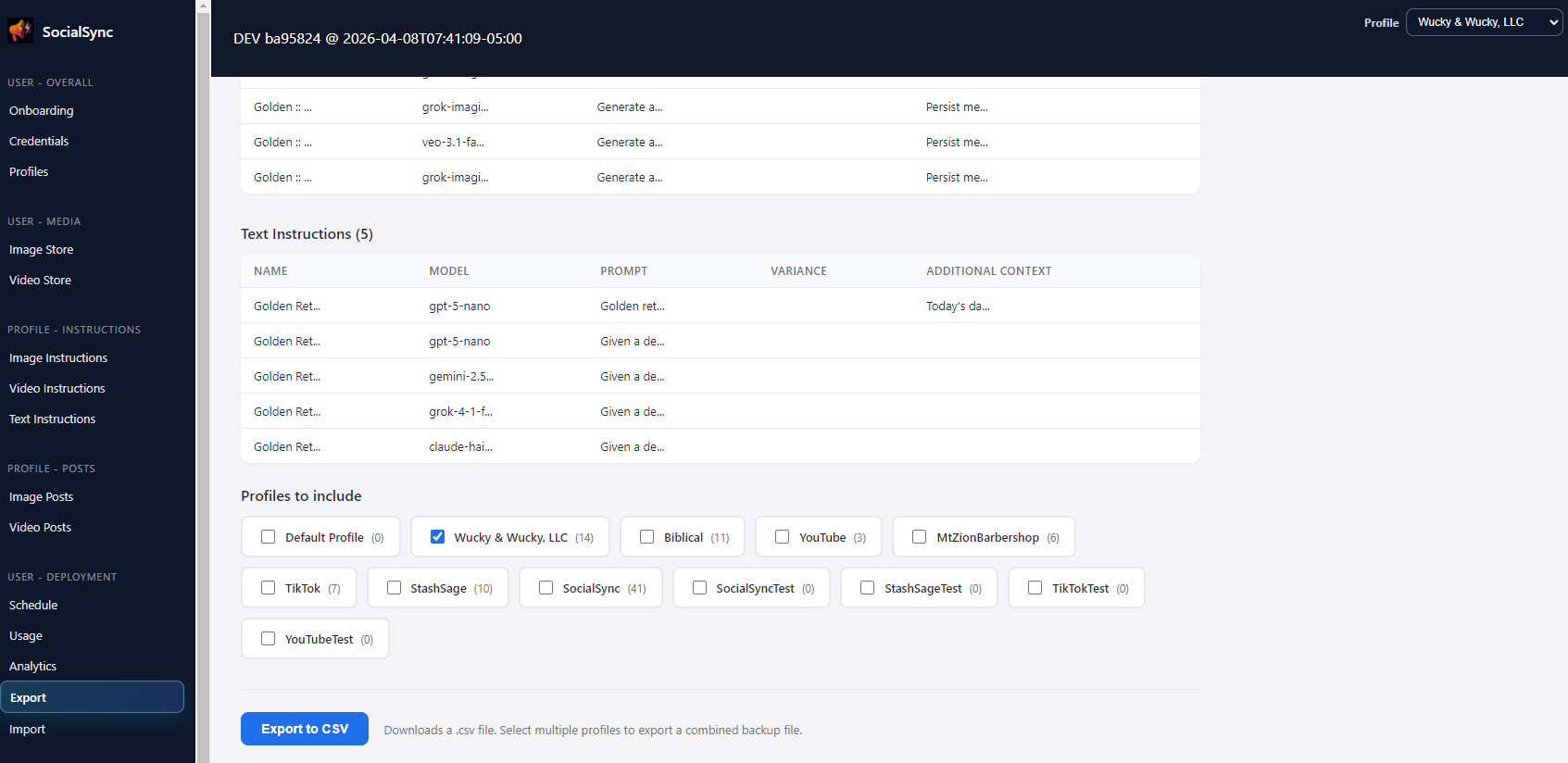
Export offers separate backups for instructions, media, and deployment settings. Choose the files you need before making a large change.
- Instructions CSV saves your Image, Video, and Text Instructions.
- Media ZIP saves your media library. Deployment JSON saves posts and schedules.
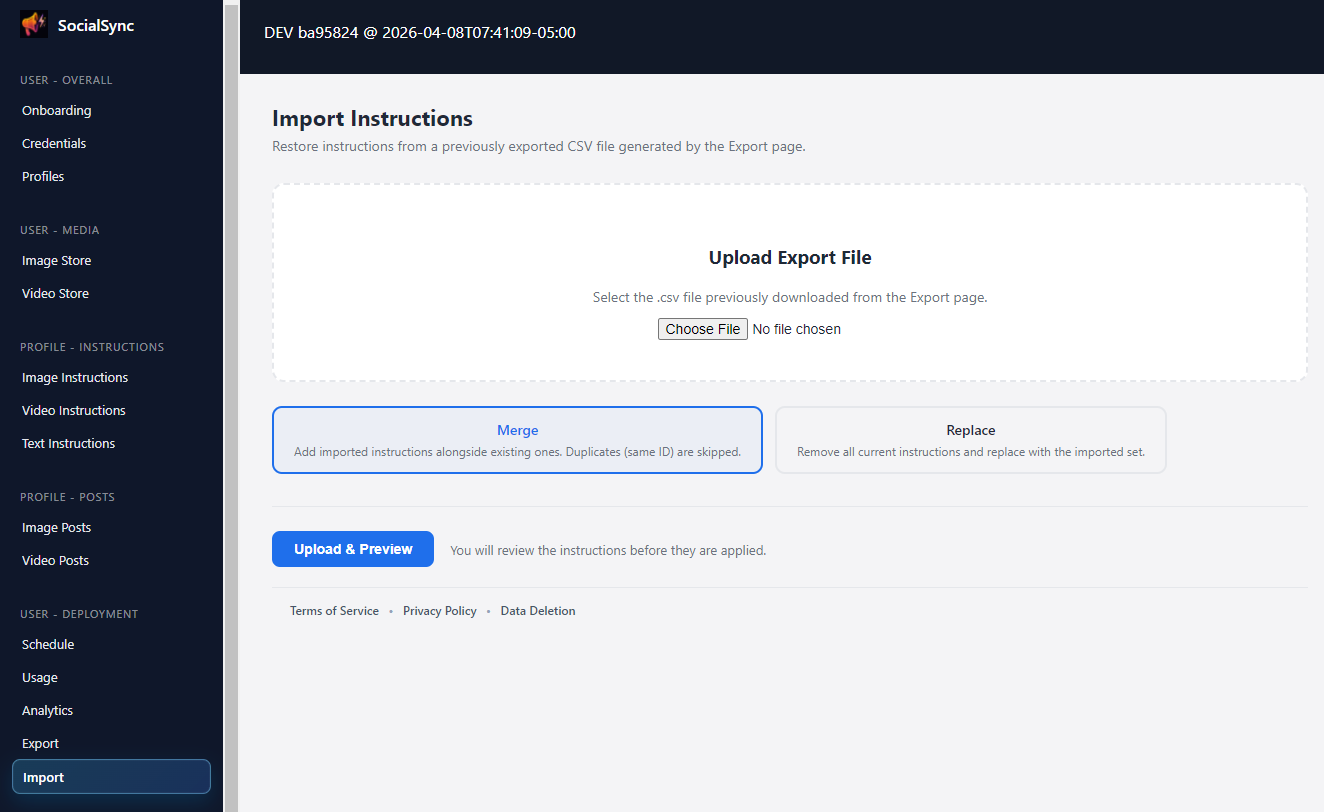
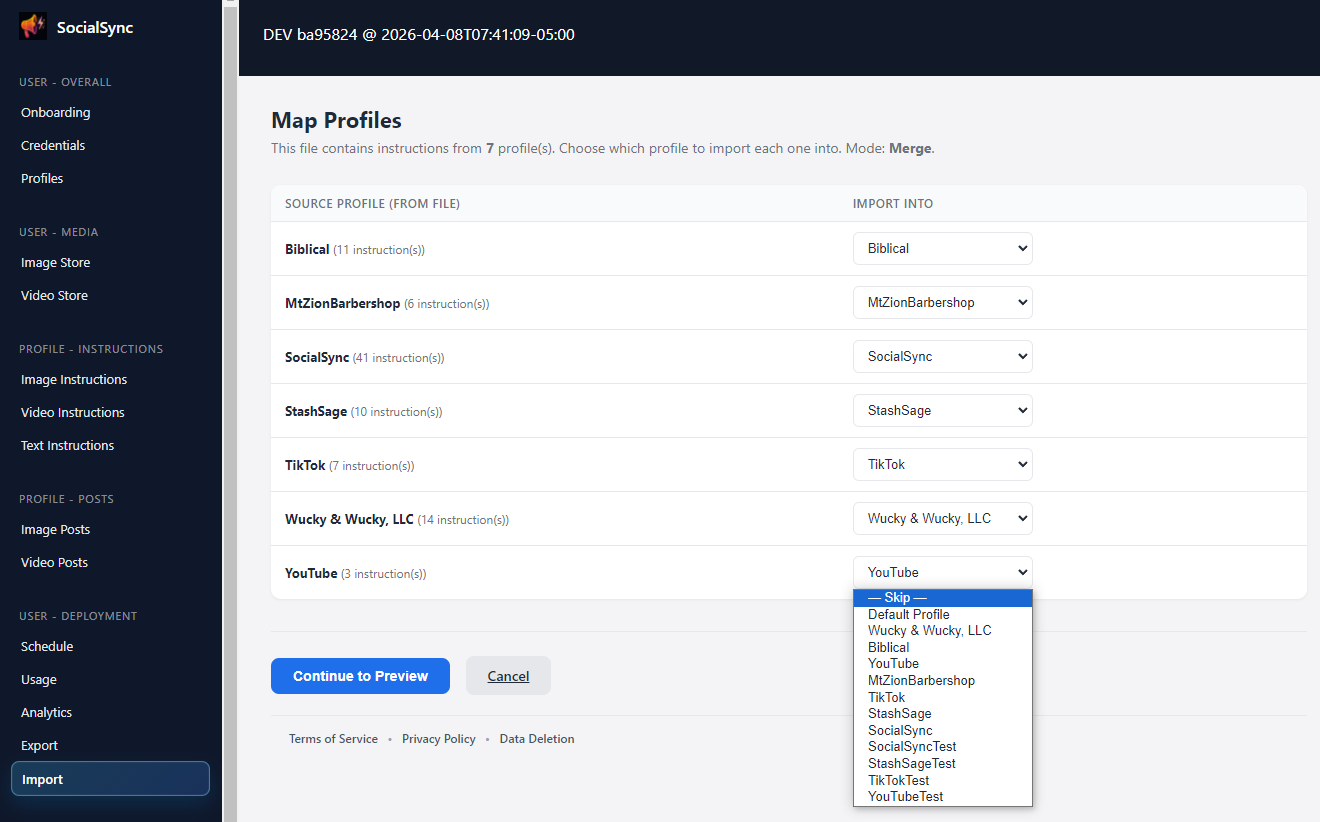
- In Import, Merge adds instruction rows with new IDs and keeps existing rows.
- Replace removes the existing instructions in the target profile and uses the imported set instead. Review the preview before confirming.
- Keep all three backup formats if you need to preserve instructions, media, posts, and schedules.
Describe a campaign, approve three posts, see what worked
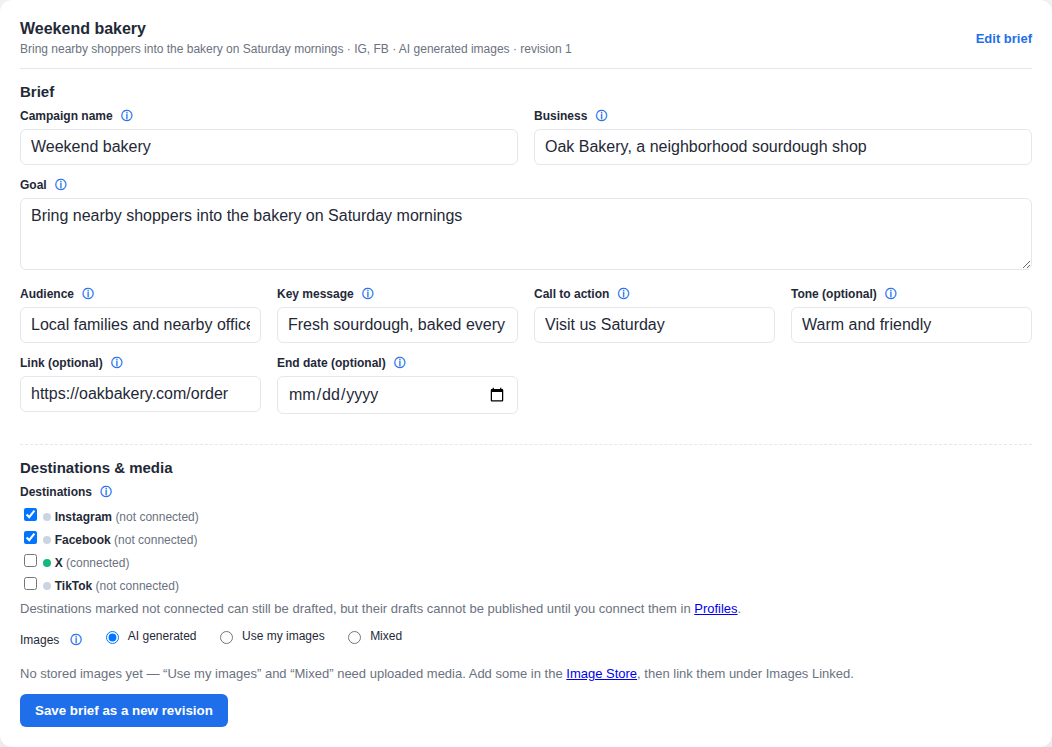
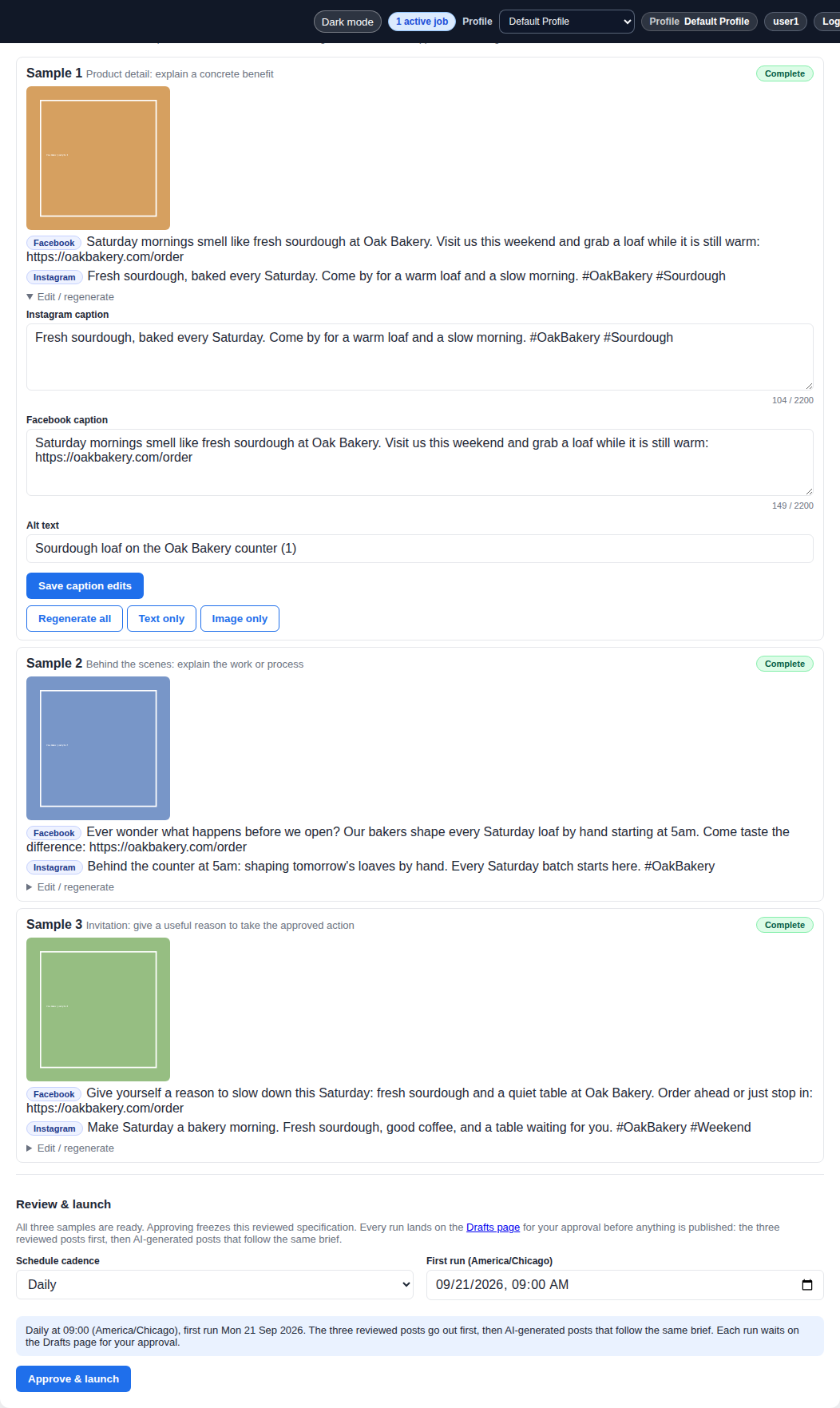
The Campaign Builder turns one brief into three sample posts you review, a schedule, and drafts you approve, then shows the results per campaign.
- Write the goal, audience, message, and call to action once. Pick the destinations and whether images are AI generated, your own, or mixed.
- Generate three sample posts, edit or regenerate any of them, and launch with a once, daily, or weekly cadence.
- Every run waits on the Drafts page for your approval. Nothing is published without you.
- Campaign results compares each campaign's runs, posts, engagement, website visits, and cost against your other posts, with a retrospective on what to change next time.